
Bulk Shorten URLs from a CSV File
Learn how to bulk shorten URLs from a CSV file with clean uploads, mappings, review steps, and export-friendly workflows.
On this page
What bulk URL shortening is and why it matters
Bulk URL shortening turns a long list of destination URLs into short links in one run, not one at a time. That matters the first time you face 25 product pages, 80 affiliate offers, or 300 local campaign links that all need tracking before Friday.
The basic idea is simple: prepare a file, send it in, and get back a set of short links that all point to the right places. One marketer can do in 10 minutes what might otherwise take an hour of copy, paste, and error checks.
This is why teams use it for campaigns, ecommerce, internal sharing, and reporting. A campaign manager wants speed; an ecommerce team wants tidy product links; a sales team wants one list that can be shared without rewriting every URL by hand.
It also keeps records cleaner. If your team later needs to change a destination URL, compare performance, or sort links by channel, the short links are already grouped in a way that makes review much easier.
Bulk shortening is not only for large companies. A small agency sending 18 links to a client can save time on the first job, then even more time on the second, because the process gets repeatable.
How CSV upload works for bulk link creation
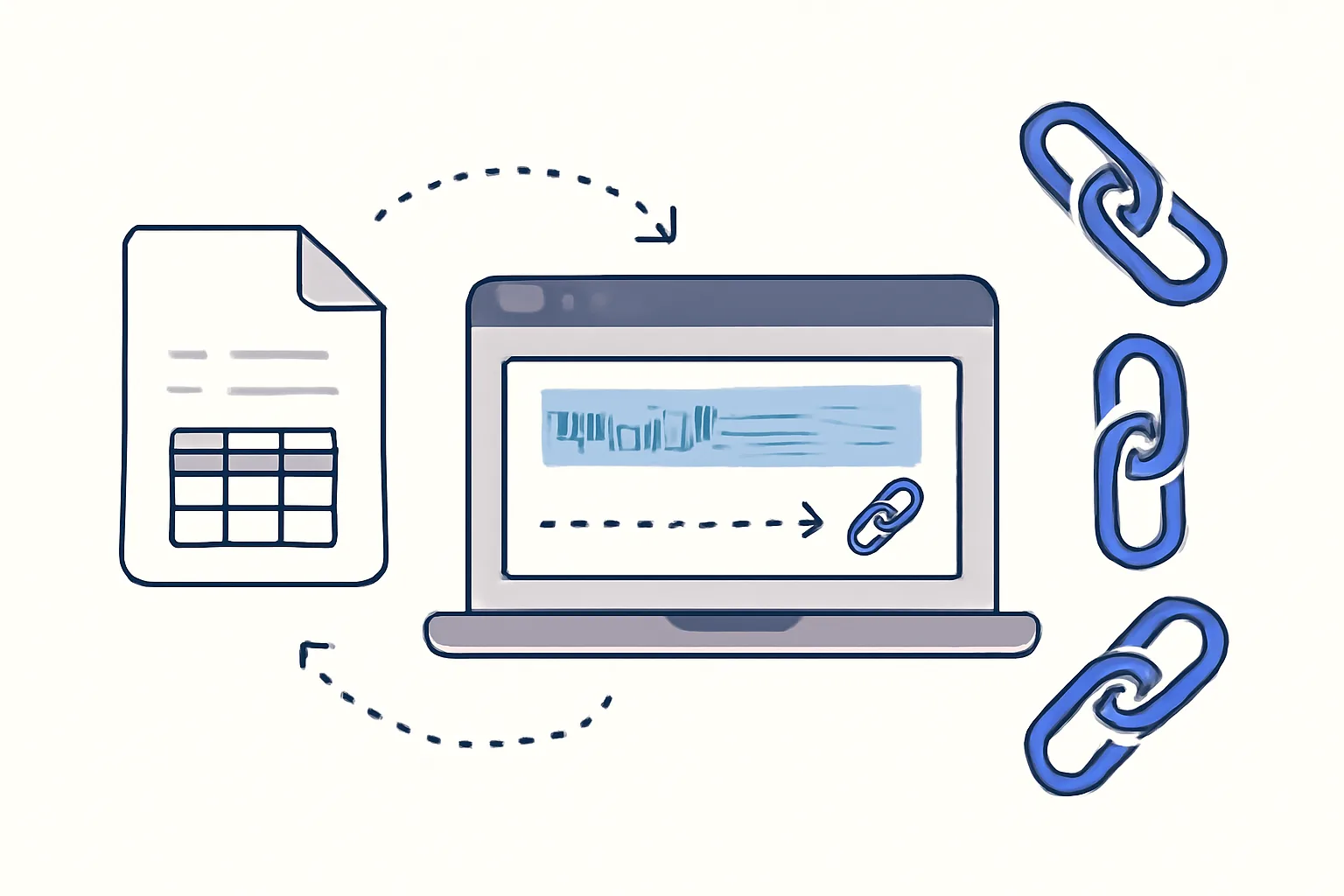
A csv upload is usually the fastest way to start mass link creation. You prepare a spreadsheet, save it as a CSV file, and upload it so the system can read each row as one link to create.
The system usually looks for at least one required column: the destination URL. Some tools also let you include a custom alias, a campaign tag, a title, a note, or an expiry date. The exact field names depend on the platform, so check the import screen before you begin.
Here is the usual flow in 4 steps. First, create your CSV. Second, upload it. Third, map each column to the correct field. Fourth, start the job and wait for the generated links to appear.
File errors tend to be plain and annoying. A missing comma, an extra blank row, or a URL split across two lines can stop the import or send one row to the error list. One bad character can ruin 1 row, even when the other 99 are fine.
The system reads rows one by one. That means a file with 50 URLs can still partially succeed if 48 are valid and 2 fail. A good importer should show that split clearly, so you do not lose the whole batch because of a single typo.
Preparing a CSV file for successful imports
Start with clean destination URLs. Each row should contain one complete URL, including
https://
orhttp://
, because many importers treat a missing protocol as an invalid link.If your tool supports custom aliases, keep them short and readable. A slug like spring-sale-2026 is easier to check than a string of random characters, and it is easier to spot in a spreadsheet when you review 40 rows at once.
Tags help when one import covers several groups. For example, a retailer might tag 12 links as
ads
, and 12 associal
. That matters later when reports are filtered by channel instead of by date.Expiry dates can be useful for temporary campaigns. If a promo ends on the 30th, setting an expiry date in the CSV keeps the link list honest instead of leaving old offers live for months.
Some teams also include notes for internal use. A note like “client approval received” or “replace landing page after launch” helps when 6 people touch the same file. Small detail, big payoff.
Before upload, sort the file by the most important field. Many teams sort by campaign name or destination domain, because spotting duplicate URLs is easier when similar rows sit together.
Running a mass link creation job from a CSV
To begin mass link creation, select the CSV file in the import screen and confirm the source columns. If the file includes URL, alias, tag, and expiry date, map each one carefully before you click the final button.
That mapping step is where many mistakes happen. A column called
Slug
may be mistaken forDestination
, and the result is a batch of broken links that look valid until someone tests them.After mapping, start the job and wait for the system to finish. A small file might process in seconds; a larger one can take longer, especially if the platform checks each row for duplicates or invalid characters.
Once the job completes, review the generated short links immediately. Open 3 or 4 at random and confirm they land on the expected pages. Ten seconds now can save a very awkward email later.
If you are working with a custom short link domain, this is also the moment to confirm that the domain appears correctly in the output. For brand-facing campaigns, the short link itself is part of the message, not just the path behind it, which is why many teams set that up early.
What happens after upload: review, edit, and export
After upload, the best systems show a results table with successful rows, failed rows, and any warning messages. That table is your first checkpoint, and it should tell you whether 100 links were created or whether 7 need attention.
Failed rows usually have a reason attached. Maybe the URL was malformed, the slug was already taken, or a field did not match the expected format. Fix the row, then re-run only the failed entries instead of repeating the full batch.
Editing after creation is often faster than rebuilding the file. If one link points to the wrong offer page, update that destination and retest it. If 15 links share the same campaign tag but only 3 were wrong, leave the 12 good ones alone.
Exports matter when another team needs the list. A file export can be handed to sales, shared with an agency, or kept for internal records. In practice, a clean export becomes the bridge between the import job and day-to-day work.
Some teams also export for audit trails. If a client asks which short link was sent in a March email, the export gives you the row, the tag, the destination, and the creation time in one place.
Best practices for clean CSV uploads
Use one separator only. If your file is built with commas, do not slip in semicolons halfway through. Mixed separators are a classic csv upload problem, and they are easier to avoid than to diagnose after the fact.
Watch for hidden spaces. A URL with a space at the end can fail even though it looks fine on screen. The same goes for aliases copied from another sheet, where an extra space can create a duplicate that is not really duplicate at all.
Keep encoding simple. Files saved from different editors can carry odd characters, and those characters sometimes break imports for accented names or copied notes. If a row contains “Café” or “Málaga,” test it before sending 200 more rows.
Avoid blank rows in the middle of the file. Many importers ignore them, but some will stop reading earlier than expected, which leaves the last 8 or 12 rows untouched. That is a bad surprise on launch day.
Do a test run with 3 rows before you send 300. It sounds cautious because it is. One small test file can show you whether the columns are mapped correctly and whether your system accepts the formatting.
Common problems with bulk shortening and how to fix them
Blank rows are the easiest problem to spot, yet they still cause trouble. Remove them, save the file again, and try the import once more. A clean 20-row file is better than a messy 200-row one.
Invalid URLs are another common failure. A row missing a protocol, a space, or an unsupported character may be rejected. If the destination is copied from a document, open it in a browser first and confirm it resolves as expected.
Duplicate custom slugs can block a batch. If two rows both ask for the same alias, only one can win. Rename one slug, or leave aliases blank and let the system assign them automatically if that fits your process.
Permission limits and file-size limits can also stop an upload. If your team account allows only a certain number of links per import, split the CSV into 2 files and process them separately.
If the file imports but the links do not redirect correctly, check redirect settings. Some teams also review 301 vs 302 redirects when they want to match campaign behavior to long-term or temporary link use.
When a landing page needs protection, a password can be added after creation. For sensitive materials, Password-Protected links are often a better fit than sending the destination URL directly.
When to use bulk shortening instead of creating links one by one
Use bulk shortening when the list is bigger than 10 or when the same pattern repeats across many links. That includes product catalogs, seasonal campaigns, partner packs, event agendas, and handoff sheets for external teams.
It also makes sense when several people need the same set of links. A marketing manager can prepare the file, a designer can place the short links in assets, and a sales lead can share the exported list without rebuilding it from scratch.
Partner link distribution is another strong case. If 40 affiliates need their own links, bulk shortening keeps the work organized and helps avoid the copy-paste mistakes that appear in one-by-one creation.
Large-scale link management is where the method earns its place. Once the process is set, mass link creation becomes a repeatable step rather than a special task, and that reduces friction every time the next campaign arrives.
Teams that test different messages can pair the import with A/B testing links to compare versions across campaigns, and teams that track brand presentation may also want a custom short link domain before the next import is sent.
If your workflow includes trackable packaging, offline handouts, or product inserts, short links can also sit beside dynamic QR codes so one campaign can move across print and web without rebuilding the destination list.
The simple rule is this: if you have 1 link, create it once; if you have 20 or more, make the file and run the import. That is where bulk shorten URLs from a CSV file stops being a convenience and starts being the cleaner way to work.
Put this into practice
Paste a link and get a short URL, a QR code and click stats in seconds — free, no sign-up.
More from the blog

How Much Does URL Shortening Cost at Scale?
Learn how much does URL shortening cost at scale, what vendors bill for, and when buying beats building your own short-link system.

How much does Urlik cost at scale for teams and developers
Learn how much does Urlik cost at scale for teams and developers, including pricing factors, team size, API needs, and hidden workflow costs.

Is Link Tracking Legal for Employee Monitoring?
Learn when is link tracking legal for employee monitoring, how scope, notice, and data minimization affect compliance, and where the risks are.