
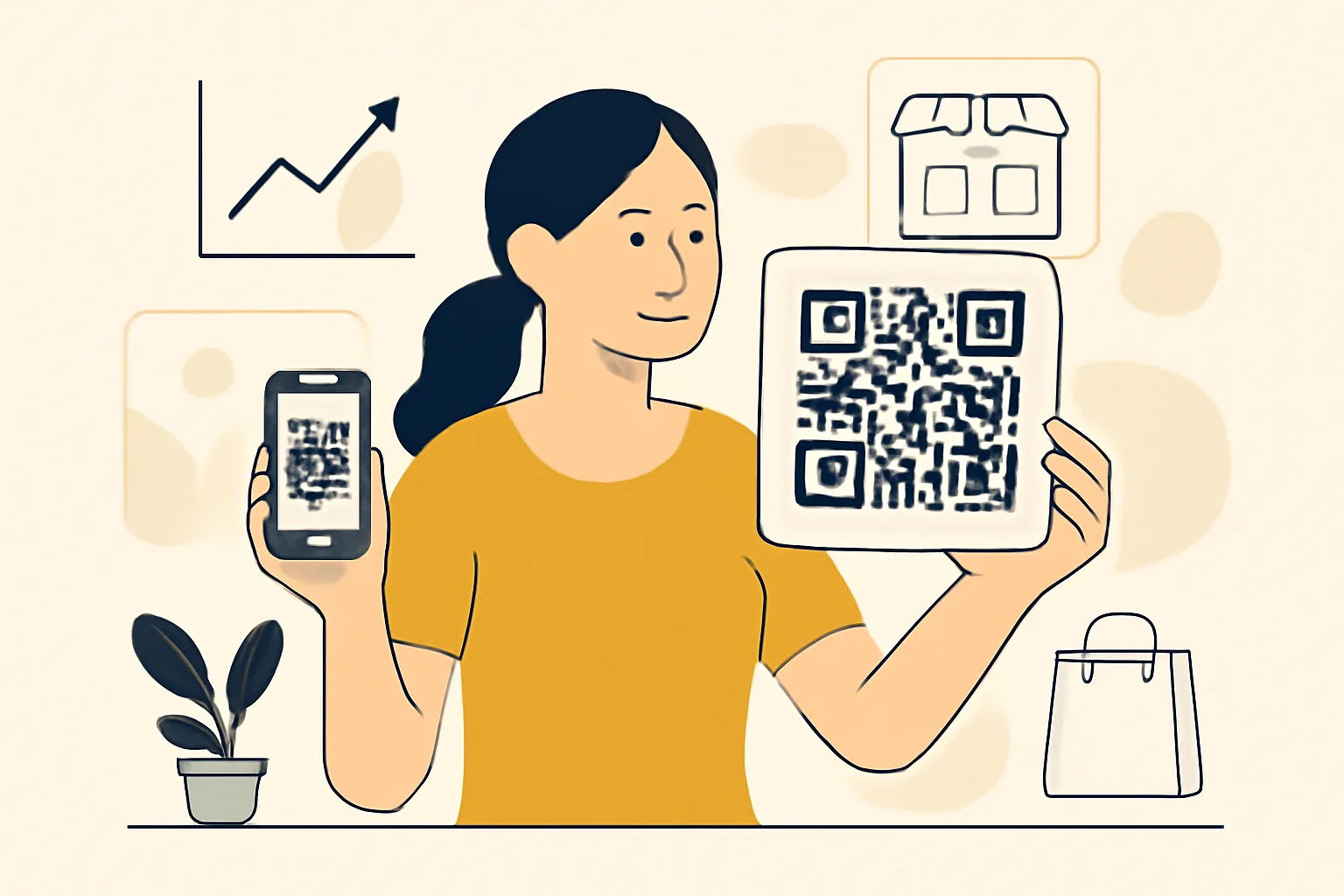
On this page
How to Create QR Codes for Small Businesses
QR codes look simple. They are not. For a small business, one square can send a customer to a menu, a payment page, a review form, or a coupon in about 2 seconds, which is why “how to create QR codes for small businesses” is worth getting right the first time.
A café may print one code on a table tent for ordering and another on the receipt for reviews. A plumber may place a code on a van that opens a contact form. A boutique may use one on product tags so shoppers can read materials, see sizes, or check stock without asking staff. That is the appeal: one scan, one action, less friction.
The trick is not making a QR code. The trick is deciding what happens after the scan. A QR code that leads nowhere useful is just decoration, and decoration does not pay invoices.
1. Why QR Codes Matter for Small Businesses
QR codes fit everyday business tasks because they turn paper and packaging into a door. Menus are the obvious example. Payment links are close behind. Reviews, coupons, contact sharing, Wi‑Fi access, and product information all work well because they match a quick action with a quick scan.
A restaurant can keep one code on the host stand for a digital menu and another at checkout for a review page. A salon can place a code near the mirror that opens a booking form. A hardware store can print a code beside a product shelf so customers can compare specs before asking for help. Each case saves a step.
Some owners also use QR codes for repeat business. A code on a coupon card can bring people back next month. A code on a thank-you receipt can point to a loyalty signup. A code on a business card can open a contact card instead of forcing someone to type a phone number. Simple, fast, practical.
There is a small but useful side effect: QR codes reduce the pressure on staff. One scan can answer a basic question that would otherwise take a few minutes at the counter. Those minutes add up, especially during lunch, weekends, or a busy market day.
2. Choose the Right QR Code Goal
Before you generate anything, choose the goal. A QR code should do one thing well. If the destination is a website, the code should open that website. If the goal is a call, the code should trigger the phone app. If the goal is Wi‑Fi access, the code should share the network details. One code, one job.
This choice matters because the destination shapes the customer experience. A product tag that opens a general homepage creates extra taps. A table code that opens a form with 12 fields will lose people fast. A better choice is a short action: order, book, call, pay, or subscribe. The fewer steps after the scan, the better the result.
For some businesses, the right goal is a download. An app, a PDF price list, or a digital brochure can all work. For others, the best QR code generator for small business needs is a simple contact card. If your customer usually asks for the same five details, a contact-sharing code is cleaner than printing them in full. Shorter path. Better odds.
One useful habit: write the goal in plain language before you generate the code. “Open menu,” “Request quote,” “Leave review,” or “Join Wi‑Fi” keeps the decision grounded. If you cannot name the action in six words, the code may be doing too much.
3. Pick a QR Code Generator
There are two broad choices: basic free tools and advanced platforms. A free generator can be enough for a static code that never changes. If the destination is fixed and you do not need analytics, that may be all you need. If you want to change the destination later, track scans, or brand the code, a more advanced platform is better. See Dynamic QR Codes: Change the Destination After Printing for a practical reason some businesses make that choice.
Static QR codes are simpler. The destination is baked in. If you print 500 flyers and later change the offer, the printed code still points to the old page. Dynamic QR codes keep the printed code the same while letting you change the link behind it. That can save a reprint, which is useful if your promotion ends in 10 days instead of 30.
Branding options matter too. Some tools let you add a logo, change colors, or frame the code with a call to action. Those choices can help, but they can also reduce scan reliability if pushed too far. A heavy design with low contrast can fail on a dim counter or a scratched label. Clean usually wins.
Look for editing control and scan tracking if you need to update destinations or measure performance. Editing control means you can swap a destination later. Scan tracking means you can see counts, time, location, or device data depending on the platform. If you need to compare a receipt code with a table tent code, tracking makes that possible. If you need only one permanent code for a brochure, basic may be enough.
4. Create and Customize the QR Code
Start with the destination URL or action. Paste the link into the generator. Confirm it is the right page, because one wrong character can send every scan to the wrong place. That mistake is common, and it is annoying to fix after 200 prints.
Next, choose the QR code type. If the tool offers shapes, colors, or a logo, make those choices with restraint. Brand colors are fine if the contrast stays strong. A logo can work if it does not cover too much of the code. The scan has to win over the style, not the other way around.
Test the design on screen before exporting. Zoom out. Zoom in. Ask a simple question: can a customer scan this in under 3 seconds from normal viewing distance? If the answer feels uncertain, strip back the decoration. That is usually the right move.
One practical rule: keep the code readable at the size it will be printed. A tiny code that looks good on a laptop may fail on a menu board or shipping box. You can also pair the code with a short label such as “Scan for menu” or “Scan to pay.” People do not like puzzles when they are hungry. If you are looking for how to make a QR code for a menu, keep the destination direct and the label obvious.
If you are sharing a code in private or with staff only, a helper page can also matter. For example, a code that leads to a private page or temporary link may fit internal use better than a public landing page. If that sounds useful, see Password-Protected Links: Share Privately, No Account.
Brand consistency helps here too. A code on a business card should feel like it belongs to the card. A code on packaging should match the package, not fight it. Keep the visual idea simple. The QR code itself is already doing enough.
5. Test the QR Code Before Printing
Never print first and test later. Scan-test the QR code on at least 3 device types if you can: one iPhone, one Android phone, and one older device. Older cameras sometimes behave differently, especially under poor light or with glossy paper. That difference can save you from a batch of unusable flyers.
Check load speed too. A code that opens a slow page feels broken even if it works. If the page takes 8 seconds, some customers will leave before it appears. Test on mobile data, not only on office Wi‑Fi. Mobile data is the real-world case for most scans.
Confirm the destination works fully, not just partly. If the code opens a menu, every link on that menu should work. If the code opens a form, the form should submit correctly. If it opens a payment page, the payment flow should finish without errors. One broken field can ruin the whole use case.
Size matters as well. A code on a window sign can be larger than a code on a loyalty card. A code meant to be scanned from 2 feet away needs more room than one on a checkout counter. If you are unsure, print a sample and scan it from the actual viewing distance. That simple test catches a surprising number of mistakes.
6. Put the QR Code on the Right Materials
Placement decides whether the QR code gets used. Storefront signs work well for walk-ins. Receipts work well for reviews and repeat visits. Product packaging works well for care instructions, setup videos, or ingredient lists. Flyers can work too, if the call to action is obvious and the paper is not too cluttered.
Table tents are especially useful for cafés and casual dining because the code sits at eye level. Business cards work for contact sharing, but only if the card is not overloaded with text. Social media graphics can include a QR code for event signups, though the code should stay large enough to scan on a phone screen. If you are sending people to social channels or campaign pages, a branded link can help; see custom short link domain for the link side of that decision.
Think about intent. A customer at the counter wants speed. A customer at home may tolerate a longer page. A person in a parking lot may be standing in bad weather, juggling bags, and trying to scan with one hand. The material should fit the moment, not just the message.
There is also a plain visibility problem. A QR code hidden in a corner, buried in a footer, or printed too close to another graphic gets ignored. Leave room around it. Put the instruction next to it. “Scan for today’s special” tells people why the square is there.
7. Track Results and Update When Needed
If you use dynamic QR codes, you can change the destination without reprinting. That helps when a coupon ends, a menu changes, or a booking page moves. A printed code can stay on the table while the offer behind it changes on Monday morning. That is one of the cleaner uses of QR codes in a small business.
Track scans and engagement if your platform offers it. A code on the window may get many scans but few completions. A code on the receipt may get fewer scans but better review rates. Those differences tell you where the code is working and where it is just taking space.
Use the data to make one change at a time. Move a code from the front door to the register. Change a button label. Swap a landing page. Then watch the result. If a code underperforms on a flyer but does well on packaging, that is useful knowledge, not failure. It means the context matters.
If clicks from the QR code matter for later follow-up, some businesses connect that traffic to retargeting. A scan from a product label may become a future ad audience. For that approach, see Retargeting Pixels on Short Links: Audiences From Clicks.
8. Best Practices and Common Mistakes to Avoid
Use a short URL when possible. Short links are easier to manage and easier to inspect. They also keep the QR code cleaner than a very long destination with extra parameters. A cleaner code usually scans better, which is the whole point.
Keep enough contrast between the code and the background. Black on white is still the easiest choice. Avoid placing a dark code on a patterned surface, metallic packaging, or a photo background. That may look clever on a mockup and fail in real life.
Leave quiet space around the code. Crowding it with text, logos, borders, and badges makes scanning harder. The quiet space is not wasted space. It is part of the code’s working area.
Avoid over-design. A logo is fine. Five effects are not. If you add too many colors or distort the shape, the code may still look “branded,” but it can become harder to read. The customer does not reward style points if the scan fails.
Do not send people to an outdated page. A QR code on a 2024 flyer that still points to a seasonal offer from last year creates confusion and extra support questions. If the offer changes often, a dynamic QR code is the safer route. If the destination is permanent, make sure it stays maintained. One dead link can cost trust faster than a typo on a menu.
Finally, think about the physical environment. A code on a shiny window faces glare. A code on a delivery box may get bent. A code on a restaurant table may get covered by cups. Small business owners tend to discover these problems the hard way, which is why a 1-minute real-world scan test is worth more than a perfect mockup.
Put this into practice
Paste a link and get a short URL, a QR code and click stats in seconds — free, no sign-up.
More from the blog
How to migrate from QR code stickers to dynamic QR codes
Learn how to migrate from QR code stickers to dynamic QR codes by auditing stickers, prioritizing replacements, and rolling out managed links.
How Much Does QR Code Tracking Cost at Scale?
Learn how much does QR code tracking cost at scale, including scan volume, code counts, analytics depth, retention, and hidden ops fees.
How to Migrate QR Codes to a New Destination Without Reprinting
Learn how to migrate QR codes to a new destination without reprinting by checking editability, ownership, redirects, and analytics continuity.