
How to Create a QR Code for a PDF File
Learn how to create a QR code for a PDF file with direct links, landing pages, mobile-ready PDFs, and update-friendly redirects.
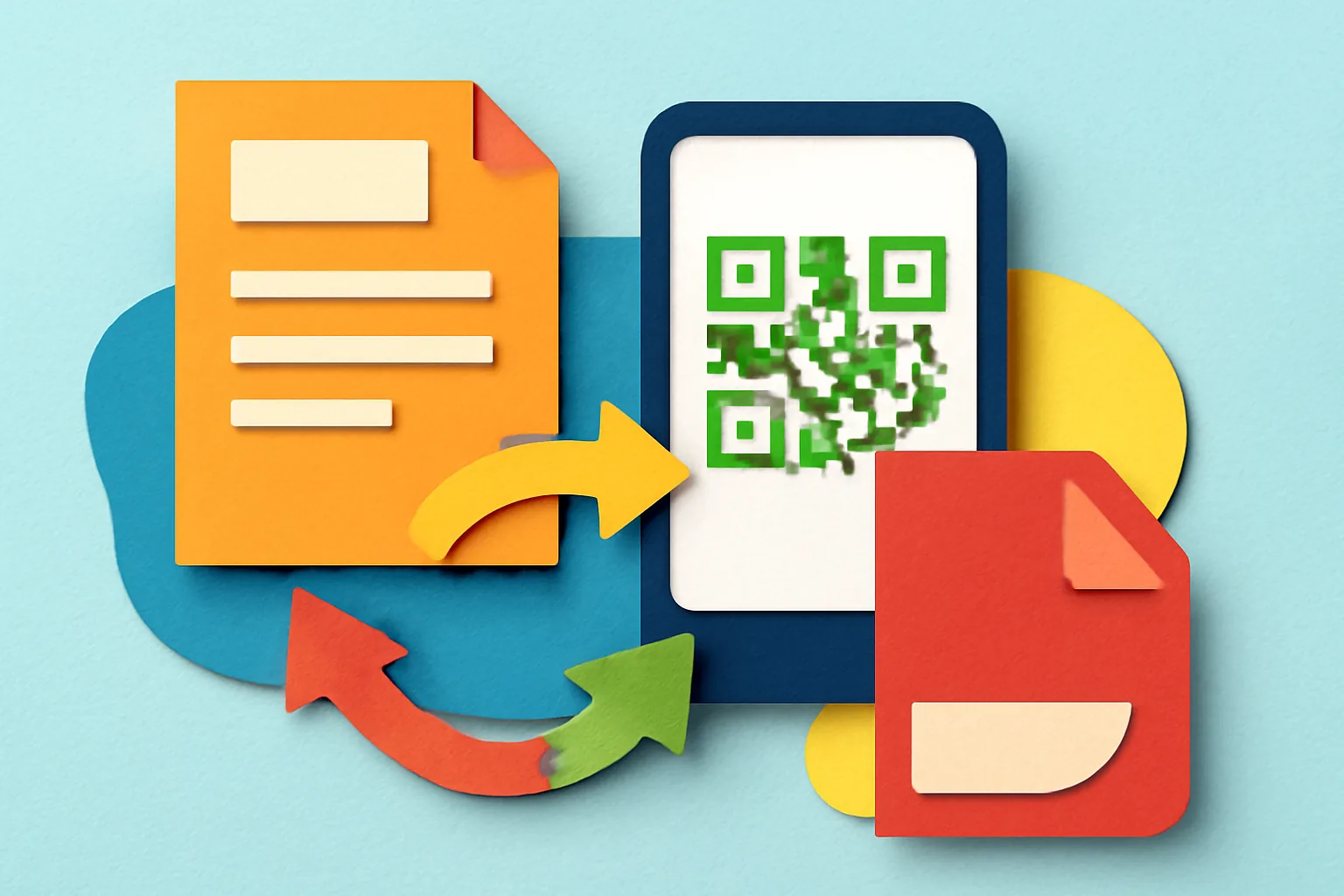
On this page
How to Create a QR Code for a PDF File
A QR code for a PDF is not just a neat shortcut. It is a decision about control. Do you want a scanner to open the PDF immediately, show a preview page first, or keep the option to replace the file later without reprinting anything? Those three outcomes lead to three different setups, and the right one depends on where the PDF will be used: a handout, a menu, a brochure, or a product sheet.
The phrase how to create a QR code for a PDF file sounds simple, but the details matter. A QR code is only as good as the link behind it, and a PDF link can fail in boring ways: the file is private, the filename is messy, or the mobile view makes people pinch and zoom. That is where the planning starts.
1. Check Whether the PDF Should Open Directly or Route Through a Landing Page
Start with the user experience. If someone scans the QR code on a poster, should the PDF open at once, or should they first land on a page with a title, a short note, and a download button? Both are valid. One is faster; the other gives you room to explain what they are about to see.
A direct PDF link works well when the file is the whole point, such as a one-page price sheet or a class handout. A landing page is better when the PDF needs context, like a conference agenda, a property brochure, or a menu that may change next week. That extra page also makes replacement easier later, because the QR code can stay fixed while the file behind it changes.
If you need that flexibility, consider using dynamic QR codes. They let you change the destination without printing a new code, which is useful when the PDF name changes, the file moves, or a campaign needs a different version halfway through the month.
2. Prepare the PDF for Mobile Scanning
Before the QR code is made, prepare the PDF itself. A scanner does not care how polished the document looked on your desktop. It cares whether the file opens quickly, fits a small screen, and is accessible without a login wall. If the PDF is 18 pages long and packed with heavy images, reduce the size if needed.
Mobile readers have short patience. A file with a clear name like “spring-menu-2026.pdf” is easier to manage than “final_final_v7.pdf.” That sounds minor, but it helps when you are checking files in cloud storage, sending links to a printer, or replacing the PDF later. Clean filenames save time. Period.
Make sure the PDF is publicly accessible if you want the QR code to work for anyone. A file stored behind permissions, even accidentally, will scan fine and then fail at the last step. If you are hosting the PDF on your own site, confirm the file URL opens without requiring a sign-in. If you are using cloud storage, check sharing settings twice. One wrong click can turn a public QR code into a dead end.
Some teams host the PDF on their own domain. Others keep it in cloud storage. Both can work, but the choice affects control. A site host is often better when brand consistency matters. Cloud storage can be quicker for internal materials. Neither choice removes the need to test the mobile experience on an actual phone.
3. Choose a PDF URL That Will Stay Stable
The QR code points somewhere, and that somewhere should not change every two weeks. A stable PDF URL is one that stays valid over time, even if the file is updated, renamed, or moved inside your storage system. That means thinking ahead before you publish the code, not after the poster is already on the wall.
A direct file URL can work if the platform gives you a durable link. A branded short link is often better when you want cleaner sharing, easier tracking, or the option to redirect later. If you want to read more about that structure, see custom short link domain. A short link can sit in front of the PDF and make the whole setup easier to manage, especially when multiple PDFs are involved.
Use a direct PDF URL when the file is stable and unlikely to move. Use a redirected URL when you may need to swap the PDF, track clicks, or keep a campaign alive after the original file changes. The question is not “Which link is shortest?” It is “Which link will still work in 6 months?” That one matters.
4. Generate the QR Code from the PDF Link
Once the PDF URL is ready, paste that link into a QR code generator. This part is simple, but do not rush it. The generator should receive the final PDF URL, not a draft link, a private preview link, or a temporary staging address. The code only knows the destination you give it.
Choose the QR code format that matches your use case. For a printed flyer, keep the design clean and avoid over-decoration that makes scanning harder. For a product sheet, a plain black code on a light background is often the safest choice. Fancy patterns may look nice on a mockup and fail in a hallway. Not helpful.
If the PDF is central to the job, label the QR code clearly at the same stage you generate it. A simple line like “Scan to open the PDF” is better than a vague “Learn more.” Readers should know what they will get before they lift their phone.
5. Add Tracking or Update Control Without Breaking Access
Some PDF links are fine as-is. Others need tracking, campaign data, or the ability to swap files later. If you need either of those, place a redirect in front of the PDF. That way, scans can go through a short link, and the short link can point to different files over time without changing the QR code itself.
This is where tools for affiliate link cloaking can be adjacent in spirit, though the PDF case is simpler: you are not hiding an offer, you are managing a destination. The useful part is control. If the PDF changes, the QR code does not need to.
If you only need raw access and no analytics, a direct PDF link is fine. If you want click counts, campaign tagging, or later replacement, a redirect-based QR code is the better choice. One more practical note: if the QR code is printed on a brochure for a 3-month event, a redirect gives you room to update the file after the event ends without replacing every copy in circulation.
For teams that care about who scans and when, a tracked short link can also support experiments. If that matters, you may want to compare destinations with A/B testing links. That is a separate workflow, but it pairs well with a PDF that is likely to change or has more than one version.
6. Test the QR Code Against the Actual PDF Experience
Testing is not a formality. Scan the QR code on at least 2 devices, and do it in 2 different apps if you can. One phone may open the PDF in a browser tab, while another sends it into a document viewer. That difference can reveal loading problems, layout issues, or a file that behaves badly on mobile.
Check the common failure points first. Does the file open at all? Does it ask for permission? Does it return a file-not-found error? Does the PDF take too long to load over mobile data? Does the first page look usable on a small screen, or does it immediately turn into a tiny wall of text? Those are the errors people actually notice.
One short test can save a reprint. Scan from a printed proof at normal distance, not just from your monitor. A QR code that works on a laptop screen may still fail when printed too small, placed too near a fold, or set on a busy background. Printing changes everything. Annoying, but true.
If the PDF is private, the test must include the permissions path. If the file needs a login, the QR code should not promise instant access. If the file is public but slow, compress it again. A 12-page brochure that loads in 30 seconds is not a brochure problem; it is a file problem.
7. Place the QR Code Near the PDF Context and Add a Clear Label
Put the QR code where the PDF makes sense. A restaurant menu QR code belongs on the table, the host stand, or the receipt. A brochure QR code belongs on the brochure itself, near the call to action. A product sheet QR code works best beside the item name or model number, not hidden in the footer like a secret.
Labels should tell people what will happen. “Scan to view the PDF” is direct. “Scan for details” is weaker because it hides the format. Users should know they are opening a PDF, not landing on a general website or a marketing page with extra clicks. Clarity wins here.
If the printed piece is meant to answer a question fast, mention the file type in the label. “Scan to open the PDF brochure” is better than a generic prompt. If there are 2 versions, say which one: “Scan for the 2026 price PDF.” That tiny bit of specificity reduces confusion at the point of scan.
8. Maintain and Replace the PDF Over Time
A QR code for a PDF is not finished when it prints. Files move. Names change. One price sheet becomes another. If the QR code points to a redirected URL, you may be able to update the PDF without changing the code at all. That is the cleanest path for materials that stay in circulation for months.
Recheck the destination after every update. Open the link, scan the code, and confirm the right file appears. If the PDF was replaced, make sure the old version is no longer the one people see by mistake. One broken link on a poster can linger in a lobby for a year, and nobody wants to explain that to a customer with a phone in hand.
Keep an eye on the file location, too. If the PDF sits in cloud storage, permissions can change after an admin update. If it sits on your own site, a new deployment can move the file path. The QR code can stay the same only if the destination stays valid. That is the whole game.
| Decision | Best when | Risk if ignored |
|---|---|---|
| Direct PDF link | The PDF is stable and public | Broken access if the file moves |
| Landing page first | You need context or a preview | Extra click if users wanted the file immediately |
| Redirect-based QR code | You may update the PDF later | Printing a new code for every change |
| Public hosting check | The file must open for everyone | Scans fail at the permission step |
If you want the broader link strategy behind this workflow, the same logic applies to any QR code that needs a stable destination. For a PDF, the difference is simple: the file must open quickly, on a phone, with no surprise step in the way. That is the standard to beat.
Put this into practice
Paste a link and get a short URL, a QR code and click stats in seconds — free, no sign-up.
More from the blog
How to Create a QR Code for a Website Link
Learn how to create a QR code for a website link by choosing the right page, generating the code, customizing it, and testing it.
What changed in QR code scanning on iPhone and Android recently
What changed in QR code scanning on iPhone and Android recently: phones now scan in the camera app, with different prompts, previews, and app handoffs.
How to Create a QR Code for a Geo Location
Learn how to create a QR code for a geo location by choosing the right pin, coordinates, and scan behavior for maps or directions.