
How to Create a QR Code for a Wi-Fi Network
Learn how to create a QR code for a Wi-Fi network so guests can join quickly without typing the password.
On this page
What a Wi-Fi QR Code Is and Why Use One
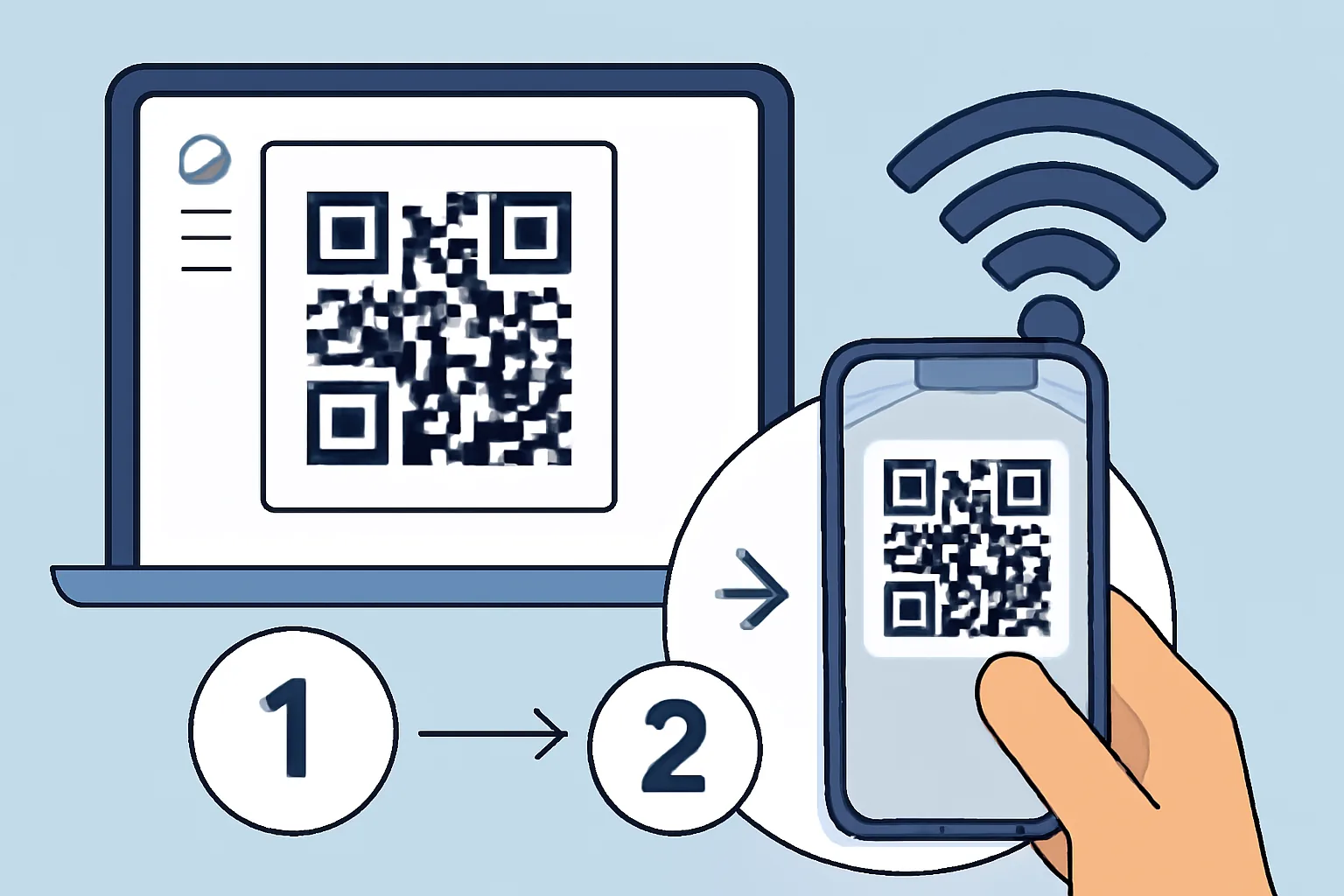
A wifi qr code is a small printed or digital code that stores your network name, password, and security type, and a phone scans it, reads the network details, and joins the Wi‑Fi without anyone typing the password by hand. That saves time. It also cuts down on mistakes.
This matters most in places where people arrive with bags, not patience. A home guest can scan once and get online. An office visitor can do the same at reception. A café, studio, or rental apartment can post one code near the door and avoid the whole “What’s the Wi‑Fi password?” exchange for the tenth time that day.
There is also a privacy angle. A wifi qr code can keep the password from being spoken aloud or written on a sticky note. For a small business, that matters because anyone who overhears the password can pass it around later. For a home, it matters because guests do not need full access to your usual routine just to check email.
A good example is a guest room. Put the code on a card next to the bed, and the visitor can connect in 10 seconds. Another example is a meeting room. The code can sit on the table, and everyone joins before the call starts. No one has to ask the receptionist twice.
What You Need Before You Create the Code
Before you make a wifi qr code, gather four details: the network name, the password, the security type, and the exact spelling of the SSID, and if one character is off, the code may still scan but fail to connect. That is the kind of error people only notice after guests start trying to join.
You also need a device or tool that can generate the code. Some routers can do this directly. Some phones can create a shareable code. Many people use an online generator or a QR tool because it lets them enter the fields manually and preview the result before printing.
Check the encryption type carefully. Most networks use WPA2 or WPA3, but the code must match the real network setting. If the code says one thing and the router uses another, the connection may fail even when the password is correct.
One more check saves time later: decide whether the network name is visible or hidden, and hidden SSIDs often require extra care, and some devices handle them poorly. If you are making a code for visitors, visible is simpler. Hidden is a small hassle now and a larger one at the door.
How to Create a QR Code for a Wi-Fi Network Step by Step
Here is a plain process that works for most generators and many router tools. Do these steps in order. Skip one, and you may have to start again.
- Open a QR code generator that supports Wi‑Fi details.
- Enter the network name exactly as it appears on the router.
- Type the password exactly, including capital letters and symbols.
- Select the correct security type.
- Choose whether the network is hidden. Most people should leave this off.
- Generate the wifi qr code.
- Download or save the image in a high-quality format.
- Print it or place it where people can scan it.
- Test it with a real phone before you share it widely.
The test matters. A code that looks fine on screen can fail on paper if the image is too small or blurred, and scan it from the distance a visitor would use, not from five inches away like someone inspecting a postage stamp. If the phone connects in a few seconds, the code is ready.
If you are making the code for a router label, keep the layout simple. Use black on white when possible. Avoid decorative fonts around the code itself. A fancy border is harmless; a fuzzy code is not.
How to Make a QR Code for Guest Access
A qr code for guest wifi is best used on a separate guest network, not on your main network. That split keeps visitors on a limited connection and away from personal devices, file shares, or printers that should stay private, and if your router supports guest access, turn it on before you make the code.
Guest networks work best with clear boundaries. Give the guest network its own name, then create the qr code for that name only. Do not reuse the password from your main Wi‑Fi. Do not share the main QR code “just this once.” That shortcut tends to survive for months.
Double-check the guest settings before printing. Confirm whether guests can see each other’s devices, whether local network access is blocked, and whether the guest network has its own password rules, and some routers let you limit access to the internet only. That setting is ideal for a waiting room or short office visit.
A qr code for guest wifi is also useful in rental properties. Put it near the entrance, kitchen, or desk so visitors do not need to ask the host by text. If the password changes between stays, regenerate the code immediately. Old printed copies should be removed. One forgotten fridge magnet can undo the whole setup.
If you want a private share for a short stay, pair guest Wi‑Fi with a protected link approach for other shared details. A separate guide on password-protected links can help when you need to share access details without leaving them open on a note or message thread.
How to Test the QR Code on iPhone and Android
Test the wifi qr code on at least two phones if you can: one iPhone and one Android, and the scan process is similar, but the menus are not identical. A code that works on one device may reveal a format issue on another, especially if the network name or security type was entered badly.
On iPhone, open the camera and point it at the code. A notification should appear. Tap it, then confirm the network join prompt. If the phone asks for the password anyway, the code likely has a mismatch somewhere. That is usually an SSID typo or the wrong security setting.
On Android, many camera apps can read the code directly, and some phones show a pop-up card with the network name, while others move into a Wi‑Fi settings screen. A successful connection means the phone joins without manual typing. You should see the Wi‑Fi symbol change and the network listed as connected.
If the scan fails, check the image quality first. Then check the code contents. If the password is correct but the phone still will not join, try entering the details into a fresh code and test again, and a line break or extra space can break the whole thing. Tiny errors do big damage here.
For teams that share links and codes often, it helps to know which shared items can be tracked or updated later. A useful companion topic is dynamic QR codes, especially if you need to change the destination after a print run and do not want to replace every sign by hand.
Common Mistakes That Break Wi-Fi QR Codes
The most common failure is the wrong password. One missed capital letter is enough. The second most common is the wrong security format. If the generator expects WPA2 and you choose “none” or “WEP,” the phone may refuse to join or the router may reject the request outright.
Typos in the network name are just as bad. SSIDs are exact. “OfficeWiFi” and “Office WiFi” are not the same thing. One has a space. The other does not. Scan the code all you want; the phone cannot guess what you meant.
Hidden SSIDs cause another set of problems. Some devices handle them poorly, and users often think the code is broken when the network is merely hidden. If the code is meant for guests, a visible SSID is easier. Hidden networks are for cases where you really need them, not for convenience.
Old codes break after a password change. That happens constantly in homes and small offices, and someone updates the router password for security, then leaves the old printed code taped to the wall. Every scan after that leads to failure. The fix is simple: regenerate the code and remove the old version the same day.
There is also the issue of bad printing. If the code is too small, glossy, folded, or distorted, phones may not read it cleanly. Keep some margin around the code, and avoid placing it behind plastic that reflects light badly. A code on a dark cabinet in a dim hallway is a bad idea.
If you ever wonder whether a shared code or link is safe to pass around, it is worth checking general short-link hygiene too. The guide on are short links safe explains what to look for before people click anything unfamiliar.
Best Practices for Sharing and Updating Your QR Code
Place the wifi qr code where people naturally stop: near the front desk, beside the door, on the guest room table, or next to the printer in a meeting room, and do not hide it in a folder, under a plant, or behind a sign nobody reads. If people have to hunt for it, they will ask anyway.
Use one printed copy for regular visitors and keep a digital copy for replacement. If the code gets smudged, torn, or outdated, reprint it immediately. After a password change, the old copy should be destroyed, and keeping both versions around creates confusion, and confusion creates support calls.
For guest sharing, keep the guest network separate from the main one and review the settings every time you update the router. Confirm that guest devices cannot see local shares, cameras, or admin panels. That one check prevents a lot of headaches. It also keeps a curious guest from finding more than you intended.
If your team shares Wi‑Fi across multiple locations, label each code by location and date, and a code for the lobby should not end up in the storage closet. A code made in January should not sit next to a March router reset without a new label. Small labels save large mistakes.
When you need to distribute the code beyond one room, consider pairing it with a branded short link on a sign or flyer. A custom domain can make the handoff look cleaner and easier to trust; the guide on custom short link domain explains that setup in more detail.
Keep a simple rule: if the network changes, the code changes. If the guest access changes, the code changes. If the printed sign looks worn, the code changes. That rule sounds strict, but it keeps people online without making them guess, and guessing is where the real delay starts.
Put this into practice
Paste a link and get a short URL, a QR code and click stats in seconds — free, no sign-up.
More from the blog

How to Create a QR Code for a Wi-Fi Network Step by Step
Learn how to create a QR code for a Wi-Fi network step by step, from choosing a generator to testing and exporting the file.
How to Create a QR Code for a Geo Location
Learn how to create a QR code for a geo location by choosing the right pin, coordinates, and scan behavior for maps or directions.
How to Create a QR Code for a PDF File
Learn how to create a QR code for a PDF file with direct links, landing pages, mobile-ready PDFs, and update-friendly redirects.